

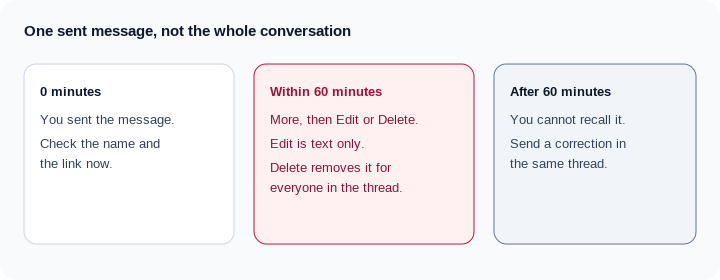
Quick answer. Yes, but only for 60 minutes. Open the conversation, hover over your message (tap and hold on mobile), click More, then Delete and confirm. LinkedIn removes it for everyone and leaves a note that says This message has been deleted. After 60 minutes the message can't be recalled, and deleting the conversation only removes it from your own inbox.
The clicks below are from LinkedIn Help, checked 24 November 2026. Taking back one message is not the same as filing or deleting the thread. The thread steps are in how to archive LinkedIn messages.
Narrow is a LinkedIn inbox tool with labels, reminders, a pipeline and an AI Auto Screener.
See how Narrow worksThe rules at a glance
Two help articles split the job. Edit or delete a sent message within a conversation is the 60-minute window. Recall a sent message in LinkedIn Messaging says you can't recall a message you send to your connections, and then points at edit, delete, or deleting the conversation from your own inbox.
| Action | Time limit | What the other person sees | Source |
|---|---|---|---|
| Edit a sent message (text only) | Within 60 minutes | An Edited label next to the message | Edit or delete article |
| Delete a sent message | Within 60 minutes | Removed for all participants. A note says This message has been deleted. It can't be retrieved | Edit or delete article |
| Recall a message after that hour | Not available. "You can't recall a message you send to your connections" | The recall article does not describe a later recall | Recall article |
| Delete the whole conversation | The recall article does not put a clock on it | Not removed from the recipient's inbox | Recall article. Steps are in the archive guide |
| InMail inside LinkedIn Messaging | You can't delete a sent InMail in the conversation. You can edit it before it is accepted, or within 60 minutes | The article does not describe a separate InMail label | Edit or delete article |
| A message you just sent in Sales Navigator | Edit or delete within 60 minutes. Deleting an InMail that has not received a response does not return the credit | The Sales Navigator inbox articles checked here do not describe an Edited or Deleted badge | Credits article and sent-messages article |
How to unsend a LinkedIn message on desktop
LinkedIn's name for the action is Delete, not Unsend. The same menu holds Edit.
- Click the Messaging icon at the top of your LinkedIn homepage. You can also open the conversation window at the lower right of the homepage.
- Open the conversation.
- Move your cursor over the message and click the More icon.
- Click Delete, then confirm Delete in the pop-up.
Use Edit from that same menu if the words are wrong and the person is right. Click Save when the text is fixed. The article says the edit is text only.
Do this on the message, not on the conversation header. Delete conversation is the other control, and it does not pull the message out of the other person's inbox.
How to unsend on the LinkedIn mobile app
LinkedIn publishes one mobile path. It does not split iPhone and Android.
- Tap the Messaging icon in the upper right.
- Open the conversation.
- Tap and hold the message.
- Tap Delete and confirm Delete.
To fix the text instead, tap and hold, tap Edit, change the message, and tap Save.
Edit instead of delete
Edit is the better fix for a typo, a wrong first name, or a wrong link, as long as the message went to the right person. You stay in the same thread, and LinkedIn shows an Edited label next to the message. Delete is the fix when the message should not have been sent to that person at all. Delete removes it for every participant and leaves the deleted note. You cannot get the text back.
A worked example: you pasted the wrong Calendly link, or you opened with the wrong first name. Edit, then Save, keeps the thread and marks it Edited. If you sent the note to the wrong member, Delete within the hour. Do not rely on a later edit. The window is 60 minutes from send, for both actions.
What the other person sees
After a delete, LinkedIn's article is specific. The message is removed for all participants. A note that says This message has been deleted appears in the conversation. The message can't be retrieved.
After an edit, the same article says the edited message displays an Edited label next to it. It does not say the old wording stays visible.
You can still report an inappropriate message if it was edited or deleted. LinkedIn states that in the same article.
What LinkedIn Help does not say
The edit-or-delete article does not say whether a push notification or an email that already went out is withdrawn. It also does not say whether the other person read the message before you deleted it. Assume a fast reader may already have seen it. If Delivery and typing indicators are on, the status rules are in LinkedIn read receipts. A missing read is not proof they never opened a notification.
The recall article does not offer a second window after 60 minutes. Its line is that you can't recall a message you send to your connections.
InMail and Sales Navigator
LinkedIn Messaging and Sales Navigator do not describe the same control.
InMail in LinkedIn Messaging. The edit-or-delete article says you can't delete a sent InMail message within a conversation. You can only edit an InMail in that conversation before it is accepted, or within 60 minutes of sending it. There is no delete path in that article for a sent InMail.
Sales Navigator. Understand InMail credits in Sales Navigator says you can only edit or delete a message within 60 minutes of sending it. If the message receives a response, including an auto-reply, the InMail credit is refunded. If you delete an InMail that has not received a response, no InMail credit is credited back. View sent and pending messages in Sales Navigator is the place those sent messages live: open Messaging, then All messages, then Sent. The article says you can then edit or delete a message you've recently sent. The same credit rule is repeated there: a response within 90 days, including an auto-reply, returns a credit, and deleting an InMail that has not received a response does not.
Those two Sales Navigator articles do not describe an Edited or Deleted badge on the Sales Navigator inbox. The Sales Navigator help URL for the 60-minute article currently shows the LinkedIn Messaging article, including the Edited label for Messaging. This guide does not copy that label onto the Sales Navigator inbox.
A whole Sales Navigator conversation is a different action. Archive messages in Sales Navigator says you can't delete a message in Sales Navigator, and that you archive it instead. The clicks for that, and for ordinary LinkedIn threads, are in how to archive LinkedIn messages. How the credit comes back, and when it does not, is in LinkedIn InMail credits.
Missed the 60 minutes? What to do
Send a short correction in the same thread. Two lines that do the job:
- "Sorry, wrong link above. Here's the right one: …"
- "Please ignore my last message. It was meant for someone else."
Do not send a second "ignore that" message to a different person. That creates a new mistake instead of closing the first one.
If you only want the thread out of your own list, delete the conversation from your inbox. LinkedIn says that does not remove it from the recipient's inbox, and it does not recall the message. The archive guide has the delete-conversation clicks, and the difference between archive, delete, and mute.
If you still owe them a real reply later, put a date on the thread. LinkedIn follow-up message templates is the note for that, not a second unsend.
Prevent the next one
The recall article's advice is to review the message before you send it. Three habits cover most of the misses:
- Write a longer or repeated message once, and reuse the checked version.
- Read the name and the link in the compose box before you send.
- Keep the context on the thread you already have, so the next note does not start from a blank box.
We build Narrow. Narrow is a LinkedIn inbox tool. Snippets reuse a message you already checked. Labels, follow-up reminders, and pipeline stages keep the right thread in front of you. On Super Pro, Narrow MCP is your LinkedIn inbox in ChatGPT or Claude. It sends one message at a time, only when you ask, and only if you granted send permission. Plans are on the pricing page. The day-to-day inbox routine is in how to manage your LinkedIn inbox.
Narrow doesn't change LinkedIn's 60-minute rule and can't recall a sent message.
Sources (checked 24 November 2026)
Common questions
Can you unsend a LinkedIn message after 60 minutes?
No. LinkedIn's edit-or-delete article allows an edit or a delete only within 60 minutes of sending. Its recall article says you can't recall a message you send to your connections. After the hour, send a correction in the same thread. Deleting the conversation removes it from your inbox only.
Does the other person know I deleted a LinkedIn message?
Yes. LinkedIn removes the message for all participants and leaves a note that says This message has been deleted. The message can't be retrieved. The help article does not say whether a push or email that already went out is withdrawn.
Can you edit a LinkedIn message after sending?
Yes, text only, and only within 60 minutes. Hover the message, click More, click Edit, then Save. LinkedIn shows an Edited label next to it. On mobile, tap and hold the message, then tap Edit and Save.
Can you unsend an InMail?
In LinkedIn Messaging you cannot delete a sent InMail inside the conversation. You can edit it before it is accepted, or within 60 minutes of sending. Sales Navigator's credits article says you can edit or delete a message within 60 minutes, and deleting an InMail that has not received a response does not return the credit.
Does deleting a conversation delete it for the other person?
No. LinkedIn's recall article says you can delete the conversation from your inbox, and that this will not remove it from the recipient's inbox. That is a different action from deleting one message within 60 minutes, which removes that message for everyone in the thread.
Narrow is a LinkedIn inbox tool with labels, reminders, a pipeline and an AI Auto Screener.
See how Narrow works