

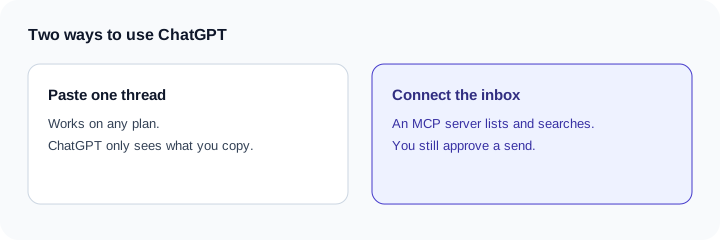
Quick answer. There are two ways. Copy a LinkedIn thread into ChatGPT and ask for a short reply, which works on any plan. Or connect your inbox to ChatGPT through an MCP server, so ChatGPT can list, search, and read your threads itself. Narrow MCP does that on Super Pro, and it can also label people, set follow-ups, and send a reply when you allow it.
Narrow is a LinkedIn inbox tool with labels, reminders, a pipeline and an AI Auto Screener.
See how Narrow worksOption 1: paste the thread
This needs no connector.
- Paste the whole thread, not only the last message.
- Add your offer in two lines, so the draft does not invent a price or a meeting link.
- Give one goal. A reply that does two jobs usually does neither.
- Ask for two or three sentences.
- Read it as the recipient before you send it from LinkedIn.
Here is the full LinkedIn thread with Jordan.
My offer, in two lines: we help hiring teams answer candidates in one inbox. A 20-minute call is the next step.
Goal: propose Tuesday or Thursday afternoon and ask which they prefer.
Write 2–3 sentences. Do not invent a calendar link.
Write it yourself when the thread is about pricing, an objection, a no, or anything personal. A model will smooth those into a tone you did not choose. More wording, separate from the tool, is in LinkedIn follow-up templates and cold message examples.
Option 2: connect your LinkedIn inbox
Pasting shows ChatGPT one thread. A connection lets it find who is waiting, search what was said, and work across many threads. It can also label people and set follow-ups if the server exposes those tools.
On Super Pro, that server is Narrow MCP. The draft still appears in the chat. Narrow does not save a draft inside the inbox. You send from LinkedIn, or you ask ChatGPT to send the one message after you have allowed sending.
How to add Narrow to ChatGPT
- In Narrow, open Manage, then MCP. You need Super Pro. Copy the ChatGPT setup details from that page. This post does not print the server URL.
- In ChatGPT on the web: Plugins, then +, then Add custom MCP server. Name it Narrow, paste the URL, choose OAuth, accept the risk warning, create it as a plugin, and install it.
- Sign in to Narrow and approve access. Choose whether the connection may send.
- In a new chat, type @ and pick Narrow.
Source: OpenAI, Add a custom MCP server, checked November 21, 2026. Menu names and plan availability change, so check OpenAI's page. Workspace permissions apply. On Business and Enterprise an admin may need to add it. This post does not list a ChatGPT plan requirement beyond that.
Keep Narrow open in Chrome with the extension enabled when you want ChatGPT to read conversations or send. Labels, snippets, notes, and follow-up lists work with Narrow closed.
12 prompts to try
Catch up
@Narrow show my unread LinkedIn conversations from this week.@Narrow catch me up on my Sales Navigator replies.@Narrow show every conversation where I owe a reply.
Sort
@Narrow find everyone who asked about pricing this week and label them Hot lead.@Narrow how many people are in my Investors label?@Narrow which of my connections with "Stripe" in their headline have I never messaged?
Follow up
@Narrow who in my Candidates label is overdue for a follow-up?@Narrow remind me to follow up with Daniel next Tuesday at 10am.@Narrow add a note to Maya: wants a demo in Q1, loop in Sam.
Reply
@Narrow read my thread with Priya and draft a reply that proposes Thursday.@Narrow save this as a snippet called Intro call and keep {{firstName}}.@Narrow looks good, send it.
The last one sends that single reply in the existing thread, and only if you allowed sending. ChatGPT still asks you to confirm the write.
What ChatGPT can't do through Narrow
- No bulk send and no sequences.
- No messages to people you are not connected to.
- No InMail and no new connection requests.
- No posting or commenting.
- It reads a recent window of each thread, not years of history.
- Reading conversations needs Narrow open in Chrome.
Is it safe?
ChatGPT asks you to confirm write actions by default, per the OpenAI docs linked above. Narrow sends only with permission, one message per request, and a retry does not send the same message twice. Narrow is local-first and does not scrape LinkedIn.
LinkedIn's User Agreement restricts some automated access. This page is not a legal reading of that agreement. The product FAQ on Narrow MCP states the same limit in shorter form.
ChatGPT or Claude?
Both work with Narrow MCP. Claude adds a custom connector under Customize, then Connectors. The plan limits and the other servers, including which ones cannot send, are in LinkedIn MCP server options. The daily routine that uses either app is how to manage your LinkedIn inbox with AI. Super Pro is on the pricing page.
Common questions
Can ChatGPT read my LinkedIn messages?
Only if you connect an MCP server that can read them, or if you paste the thread. A paste shows ChatGPT only the text you copied. Narrow MCP on Super Pro can list and search LinkedIn and Sales Navigator conversations while Narrow is open in Chrome.
Can ChatGPT send LinkedIn messages for me?
Not by itself. With Narrow MCP, it sends one message only if you allowed sending and you ask it to send. ChatGPT asks you to confirm write actions by default.
Narrow is a LinkedIn inbox tool with labels, reminders, a pipeline and an AI Auto Screener.
See how Narrow works