

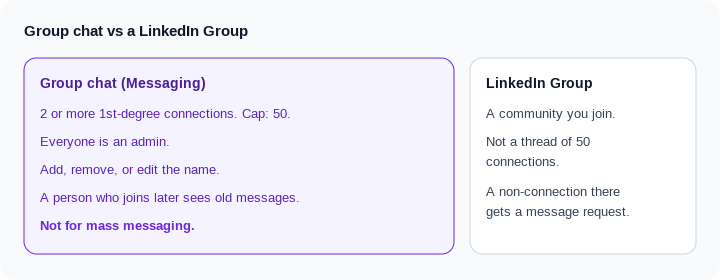
Quick answer. A LinkedIn group chat is a messaging thread with two or more of your 1st-degree connections, up to 50 people. Everyone in it is an admin: they can add or remove members, edit the conversation name, and see the full history, including messages from before they joined. It is not a LinkedIn Group. A Group is a community. A group chat is a conversation.
The create clicks are from Create a group chat on LinkedIn Messaging, checked 26 November 2026. If the person is not a connection, stop and use how to message someone on LinkedIn without connecting.
Narrow is a LinkedIn inbox tool with labels, reminders, a pipeline and an AI Auto Screener.
See how Narrow worksHow to create the chat on desktop
You start with two or more 1st-degree connections, and you can add up to 50 members. Everyone shares the history, including people who join later. LinkedIn says these chats are for conversations with connections, not mass messaging. You can report or leave a chat that is irrelevant.
- Click the Messaging icon at the top of your homepage, or open the conversation window at the lower right.
- Click the Compose icon.
- Type the names in Type a name and click each person.
- Type the message in Write a message.
- Click Send.
The first line should say why the thread exists. Help says any participant can edit the conversation name. It does not name a separate rename button, so use a name field if you see one and do not hunt for Rename.
How to create it on mobile
The create article publishes desktop steps only. Send messages to connections is the mobile Compose path, and it uses the To field for more than one name. The 1st-degree rule and the 50-person cap still come from the group-chat articles.
- Tap the Messaging icon.
- Tap Compose.
- Type the names in the To field and tap each person.
- Type the message in Write a message.
- Tap Send.
That article also says you can only message your connections. A coworker or Group member you are not connected to is a message request, not an extra name in To.
A voice message can go in a group chat from the LinkedIn mobile app. The steps are in how to send a voice message on LinkedIn.
Group chat actions
"Not stated" means the pages checked on 26 November 2026 do not give that fact.
| Action | Who can do it | Where | What others see |
|---|---|---|---|
| Start | You, with two or more 1st-degree connections | Messaging or the lower-right window, Compose, Type a name, Write a message, Send | They are in the chat. Shared history. A separate "added" notice is not stated |
| Add people | Any participant in a member-created chat. Not in a Community chat | More, Add / Remove people, type the name, Add, Done. Or @mention a 1st-degree connection | They see the full history, including older messages. Any other alert is not stated |
| Remove people | Any participant in a member-created chat | More, Add / Remove people, More beside the name, Remove, confirm, Done | That person is notified |
| Rename | Any participant can edit the conversation name | Not stated. No button label on the create article | Not stated |
| Leave | You, only if at least two other people remain. Not a one-to-one | More, Leave conversation, then confirm | Others are notified. You see "You left the conversation" |
| Delete | Not limited to admins on the delete article. Your inbox only | More, Delete conversation, Delete | Gone from your inbox, not from theirs. No delete notice is stated. The connection stays |
Add or remove people
Add or remove participants splits two products. In a member-created chat, any participant can add or remove people. In a Community chat, participants cannot. Those chats are invite-only and managed by LinkedIn.
Add on desktop: open the chat, click More, click Add / Remove people, type the name in Conversation details, click Add, then Done. You can also @mention a 1st-degree connection in a message. The tip does not extend that mention to someone you are not connected to.
Add on mobile: Messaging, open the chat, More, Add / Remove people, Add people, select the member, Done.
Remove: More, Add / Remove people, More next to the name, Remove, confirm, Done. The same path is on mobile, with taps. LinkedIn says the removed person is notified.
The cap is 50 in a member-created chat. Message requests agrees: everyone sees the same history, including people who join later.
Leave or delete
Leaving and deleting are different, and neither erases the chat for everyone else.
Leaving a Conversation: leaving permanently removes you. Notifications and new messages stop. You cannot reply or rejoin. You can leave only when at least two other participants remain. You cannot leave a one-to-one thread.
Desktop: open the thread, click More, select Leave conversation, and confirm. The article's dialog says Yes, leave. A current screen may word that confirm differently, so use the dialog you see. You then see "You left the conversation." Others are notified. The article does not print mobile leave steps.
Delete a conversation or group chat removes it from your inbox only. You cannot restore it. Deleting does not delete or block the connection.
- Click Messaging, or use the lower-right window.
- Open the group chat.
- Click More.
- Click Delete conversation.
- Click Delete.
On mobile, tap More, tap Delete conversation, and confirm. One mobile path says Delete. Another says Ok.
Archive is a third action. Restoring from Archived is in how to archive LinkedIn messages.
Group chat vs LinkedIn Groups vs Community chats
"LinkedIn group message" covers two products. The words match. The objects do not.
| Group chat | LinkedIn Group | Community chat | |
|---|---|---|---|
| What it is | A thread in Messaging | A community with its own homepage and member list | An invite-only chat managed by LinkedIn |
| Who | Your 1st-degree connections, up to 50 | Members of that Group, including people you are not connected to | Not a list you build from Compose |
| Who controls it | Every participant can add or remove people | A member sets Messaging to Yes or No. Owners and managers cannot turn messages off | Participants cannot add or remove people |
| History | Shared, including messages from before a person joined | Not described as one shared thread | Not stated on the pages checked here |
The Group column is a message request: Groups homepage, See all, Message beside a member. They can decline in private. The Messaging toggle is in group message settings. The Community column is only what the add-or-remove article says. It does not say how to find one.
Use cases that work
Help's rule is a conversation with connections, not a blast.
A warm introduction, when both people are already your connections. Say who is who in the first line. If you still need a connector, the ask is in how to ask for a LinkedIn introduction. Once they reply to each other, move the rest to a one-to-one.
A small hiring loop. Only teammates who are already connected. Name the chat after the role. Add the candidate only if they are 1st-degree.
A deal team on the account. The people on the call, not the company. Fifty is the cap, not the goal.
Say why you started it, name the chat, and do not add someone who will not reply. They see the history when they join. When the intro is done, continue one-to-one. Do not use the chat for mass messaging. LinkedIn says that on the create page and the add page.
A noisy thread is still an inbox problem. The daily pass is in how to manage your LinkedIn inbox.
After an intro chat, track the follow-up in Narrow with labels and reminders on the conversation you continue. Narrow does not create LinkedIn group chats. Plans are on the pricing page.
What LinkedIn Help does not say
- The rename button. Participants can edit the conversation name. The button label is not given.
- Mute. The create, add, leave, and delete articles do not say whether a group chat can be muted.
- How many group chats you can start. Not stated. The stated cap is 50 participants, not 50 chats.
- Mobile leave steps, and one mobile word for delete. Leave is desktop on the article. Delete's mobile confirm is Delete on one path and Ok on another.
- Adding a non-connection. The steps start from 1st-degree connections. They do not describe an error or a workaround.
Sources (checked 26 November 2026)
- Create a group chat on LinkedIn Messaging
- Add or remove participants in a group chat
- Leaving a Conversation
- Delete a conversation or group chat on LinkedIn Messaging
- Send, receive, and manage message requests
- Send messages to connections on LinkedIn Messaging
- Settings to allow or prevent messages from group members
Common questions
How many people can be in a LinkedIn group chat?
Up to 50. The create article says you can start with two or more 1st-degree connections and add up to 50 members. The add-or-remove article says member-created group chats can have up to 50 participants.
Can I add someone I'm not connected to?
LinkedIn's create steps start from your 1st-degree connections. Adding someone is also described as a 1st-degree connection, by name or by an @mention. The connections article says you can only message your connections. A coworker or Group member you are not connected to is a message request, not a name in Compose.
Does a new member see old messages?
Yes. LinkedIn says all participants share the same conversation history, even if they join later. The message-request article says the same thing: everyone has the same view, no matter when they join.
What happens when I leave a LinkedIn group chat?
Leaving permanently removes you. You stop getting notifications and new messages, and you cannot reply or rejoin. You can only leave a conversation that already has at least two other participants. You cannot leave a one-to-one thread. Others are notified, and the thread shows that you left.
Can I delete a group chat for everyone?
No. Delete removes the conversation from your inbox only, not from the other participants. You cannot restore it. Deleting does not delete or block the connection.
Narrow is a LinkedIn inbox tool with labels, reminders, a pipeline and an AI Auto Screener.
See how Narrow works