

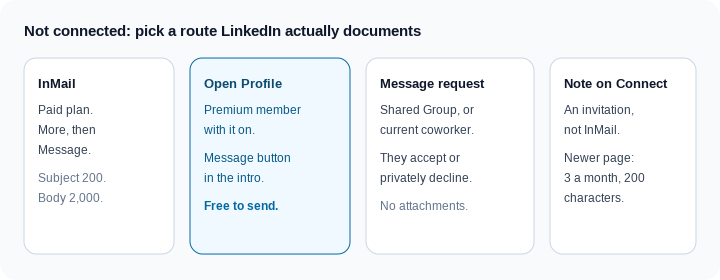
Quick answer. On a free account you can message only 1st-degree connections and LinkedIn Pages. To reach anyone else, use InMail (Premium, Sales Navigator, or Recruiter), message a Premium member who has Open Profile on, send a message request to a fellow LinkedIn Group member or a current coworker, or add a note to a connection request.
Those doors are the ones Send messages on LinkedIn names, checked 26 November 2026. Credit counts stay in LinkedIn InMail credits. Accept and decline stay in LinkedIn message requests. Who counts as 1st-degree is in 1st, 2nd and 3rd degree connections.
Narrow is a LinkedIn inbox tool with labels, reminders, a pipeline and an AI Auto Screener.
See how Narrow worksYour options when you're not connected
| Route | Who it works for | Cost or plan | Limit LinkedIn states | Where the reply shows |
|---|---|---|---|---|
| InMail | A non-connection who still accepts InMail | Premium, Sales Navigator, Recruiter, or Campaign Manager. A Basic account must upgrade | Subject 200. Body 2,000. Credits are not for sale. Premium credits do not work on Sales Navigator or Recruiter | Not stated |
| Open Profile | A Premium member with it turned on | Free, as Help describes it | A per-period cap. No number is published | Not stated |
| Group message request | A shared Group member you are not connected to | No credit is mentioned | No attachments. Group Messaging can be No. Owners cannot turn that off | Main inbox after Accept. A decline is private |
| Coworker message request | A current coworker you are not connected to | No credit is mentioned | No attachments. Volume to non-connections may be limited | Main inbox after Accept. A decline is private |
| Note on a connection request | Someone you invite | Not InMail. Newer page: 3 a month and 200 characters on a free account. Premium: a note on every invite | Older page: 5 a month, and 300 characters on Premium | In your messages if they reply, even without accepting |
| Follow | Someone whose posts you want | No message is sent | Followers vs connections: a follow is not the Message path | No thread |
Campaign Manager's line is Sponsored Messaging, an ad, not the steps below. Settings & Privacy message settings apply to InMail, Sponsored Messaging, and Open Profile. Follow only puts their public posts in your feed.
How to send an InMail
Send an InMail Message: a Basic (free) account must upgrade to Premium. You cannot message someone who has opted out of InMail. If Open Profile is on, that same article says you can message them for free. That is the next section.
Desktop, from the profile:
- Go to the member's profile.
- Click More in the introduction section.
- Select Message [name].
- Type a Subject if you want one. It is optional, and the cap is 200 characters.
- Type the message. The body cap on this page is 2,000 characters.
- Click Send.
You cannot buy credits outside the monthly allotment, and Premium credits cannot be used on Sales Navigator or Recruiter. The monthly numbers are in LinkedIn InMail credits.
How to send an Open Profile message
Send an Open Profile message uses a different button. The feature lets members contact a Premium member for free. LinkedIn limits how many you can send in a period, and it does not print the number.
- Go to the Premium member's profile.
- Click Message in the introduction section.
- Type the message.
- Click Send.
That Message button is the only sign the article gives. It does not describe a badge. If you already have Premium and the card on file is expired, update payment before you send. Whether a free account may send is not answered here.
How to send a Group or coworker message request
Send, receive, and manage message requests covers a shared Group or a current coworker when you are not connected. They can accept or privately decline. You are not told about a decline. Attachments cannot be sent. LinkedIn may limit these messages, with no number given. Finding a declined request later is in LinkedIn message requests.
Group member, desktop
- Go to the Groups homepage.
- Select the group.
- Click See all on the right.
- Click Message next to the member.
- Type the message and click Send.
On mobile: Groups homepage, the member list under the group name, the Message icon, then Send.
Coworker, desktop
- Click the Messaging icon.
- Click the Compose icon.
- Type the name in Type a name and select them.
- Write it in Write a message.
- Click Send.
On mobile: Messaging, Compose, the name in To, then Send.
Accept moves the conversation to the main inbox.
A Group member can refuse these notes. Under Messaging in that group's settings, the toggle is Yes or No for whether other members can message them. It saves automatically. Owners and managers cannot turn it off.
How to add a note to a connection request
A note is not InMail. Personalize invitations to connect puts it on the invitation. Desktop:
- Open the profile.
- Select Connect.
- Click Add a note.
- Write the note.
- Select Send invitation.
On mobile, tap More, then Personalize Invite, then Send Invitation. Invitations from People You May Know on the mobile app cannot be personalized. A primary email is required to send invitations.
The newer limits: a note on up to three connection requests a month, 200 characters each. Premium members can add a note to every invitation, and connection-request limits may still apply.
The older comparison page, last updated three years ago, disagrees. It says free accounts get five personalized invitations of 200 characters, and Premium notes can be 300. LinkedIn's newer help page says three a month. The older page says five. Check the counter in your account.
If they reply, it appears in your messages, and they can reply without accepting. Wording for the 200-character field is in how to write LinkedIn connection requests.
Why don't I see a Message button?
There is no single error. These are the reasons the articles support.
- Wrong control. Connections use Message, per Send messages to connections. Open Profile does too. InMail uses More, then Message [name].
- InMail is off. Opt out: Me, Settings & Privacy, Data Privacy, Messages, then Allow others to send you InMail? to No.
- You are blocked. You cannot message someone who blocked you.
- Free plan, and InMail is all that is left. A Basic account must upgrade.
- The shared Group's Messaging toggle is No. That does not explain a missing button outside the group.
A 2nd-degree profile often shows Connect instead. See 1st, 2nd and 3rd degree connections.
Which route should you use?
- Shared Group or current coworker, when you have one. No credit is mentioned. No attachments, and a decline is silent.
- Open Profile when Message is in the introduction. Help calls it free.
- A connection note when you want the relationship, not only the reply. Cold message examples cover the sentence after you are allowed to send.
- InMail when the other doors are closed and the timing will not wait.
Help publishes no reply rate for these. Once they reply, or accept the request, the thread is a normal LinkedIn conversation. Narrow's labels and follow-up reminders help you not lose it, and the Sales Navigator inbox is on Super Pro. Plans are on the pricing page. Narrow does not send InMail or show message requests.
What LinkedIn Help does not say
- The exact cap on messages or requests. Help says volume is limited. It does not print the number.
- Whether the Open Profile sender needs Premium. The page says members can contact a Premium member for free. The only billing line is an expired card on an account that already has Premium.
- The weekly invitation cap. Premium "may" still hit connection-request limits. The weekly number is absent. The three-versus-five note conflict is above.
- Where an InMail or Open Profile reply lands. Not stated. A request after Accept goes to the main inbox. A reply to an invitation note appears in your messages.
Sources (checked 26 November 2026)
- Send messages on LinkedIn
- Send an InMail Message
- Send an Open Profile message on LinkedIn
- Send, receive, and manage message requests
- Settings to allow or prevent messages from group members
- Personalize invitations to connect
- Differences between InMail Messages and personalized invitations
- Opt Out of Receiving InMail Messages
- Send messages to connections on LinkedIn Messaging
Common questions
Can you message someone on LinkedIn without connecting for free?
Yes, in the cases LinkedIn documents. A Premium member with Open Profile on can be messaged for free. A fellow Group member or a current coworker can receive a message request, and that article does not mention an InMail credit. A free account can also add a note to a connection request. The newer help page allows three personalized notes a month, each up to 200 characters. An older page still says five. InMail itself requires a paid subscription.
Can you see if someone has Open Profile?
LinkedIn's Open Profile article does not describe a badge. The step it gives is to open that Premium member's profile and click Message in the introduction section. If the button is not there, the article does not give a second test.
Does a connection request note count as a message?
LinkedIn treats it as a note on an invitation, not as InMail. The newer help page caps a free account at three personalized invitations a month, 200 characters each. Premium members can add a note to every invitation, and connection-request limits may still apply. If the person replies, that reply appears in your messages, and they can reply without accepting. An older page still says five notes a month and 300 characters for Premium. Check the counter in your account.
Why can't I message someone on LinkedIn?
On a free account you can message 1st-degree connections and LinkedIn Pages. For anyone else, the option depends on Open Profile, a shared LinkedIn Group, a current coworker relationship, or InMail. You cannot message someone who has blocked you, or someone who has turned InMail off. A Basic account has to upgrade before InMail works. LinkedIn also limits how many messages a member can send in a period, and it does not publish that number.
Narrow is a LinkedIn inbox tool with labels, reminders, a pipeline and an AI Auto Screener.
See how Narrow works