

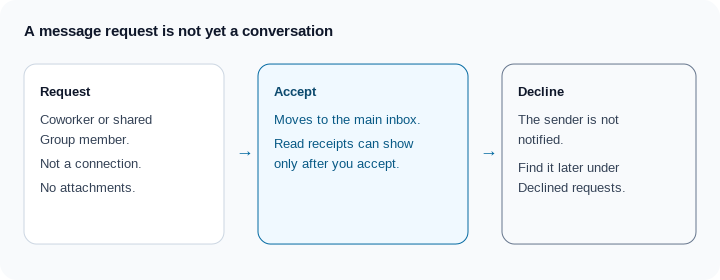
Quick answer. A LinkedIn message request is a message from a coworker or a member of a shared Group who isn't one of your connections. Find it under [Number] message request(s) in Messaging (the Message Request icon on mobile), then click Accept to move it to your main inbox or decline privately. The sender isn't notified of a decline, and you can still accept it later from More, then Declined message requests.
The steps are from LinkedIn Help, checked 24 November 2026: Send, receive, and manage message requests. Read receipts on that request are a separate article, covered in LinkedIn read receipts.
Narrow is a LinkedIn inbox tool with labels, reminders, a pipeline and an AI Auto Screener.
See how Narrow worksWhat is a message request on LinkedIn
LinkedIn's article says you can send a message request to communicate with coworkers or Group members that you aren't already connected with. If you receive one, you are notified, and you decide to accept or privately decline.
Four limits sit in the notes on that page:
- If a member declines a message request, the sender won't be notified.
- Attachments cannot be sent in message requests.
- Everyone in a group chat has the same view of the conversation history, no matter when they join.
- LinkedIn may limit your ability to send messages to members you are not connected to. The article does not give a number for that limit.
The same page adds that LinkedIn sets some limits on membership, content, and other activities inside a group, so groups stay manageable. It does not list those numbers here, so this guide does not invent them.
A connection is a different relationship. Who can message you after you connect, and why some profiles show Follow instead of Connect, is in LinkedIn followers vs connections.
Message request vs InMail vs regular message
These are three different LinkedIn paths. The cells below use only the pages checked for this guide. A blank that those pages do not answer is marked "Not stated here."
| Message request | InMail | Regular message | |
|---|---|---|---|
| Who it's for | A coworker or a shared Group member you are not connected to. Also a group chat with coworkers | A Premium feature. Sales Navigator describes InMail as a private message to any member, without an introduction | Messages between you and your connections, which is when delivery indicators can show |
| What it costs | The message-request article does not mention an InMail credit | An InMail credit. A response within 90 days can return it. See LinkedIn InMail credits | Not stated here. These pages do not describe an InMail credit for a message to a connection |
| Attachments | Cannot be sent | Not stated here | Not stated here |
| Read receipts | Only after the recipient accepts | Do not appear to the InMail sender | Shown when Delivery and typing indicators are on |
The InMail cost line comes from two articles. InMail message credits and renewal process calls InMail a Premium account feature, and says a credit comes back when the recipient accepts, declines, or responds within 90 days. Understand InMail credits in Sales Navigator says a Sales Navigator InMail that receives a response within 90 days returns a credit, and one that gets no response does not. Read receipts are from Delivery and typing indicators: they do not appear to InMail senders, and on a message request they appear only after the recipient accepts.
Taking back a message you already sent, including the InMail edit window, is in how to unsend a LinkedIn message.
Where to find message requests
Desktop. Go to Messaging and click [Number] message request(s). LinkedIn's article writes the label with the count in front, as in "3 message request(s)" when you have three.
Mobile. Tap the Messaging icon, then the Message Request icon at the top of the Messaging screen.
Open the request from that list. It is not in the main conversation list until you accept it.
How to accept a message request
Accepting is the step that turns the request into an ordinary conversation.
Desktop
- Go to Messaging and click [Number] message request(s).
- Click the message request.
- Click Accept.
LinkedIn says the conversation will move to the main inbox.
Mobile
- Tap the Messaging icon.
- Tap the Message Request icon at the top of the Messaging screen.
- Tap the message request.
- Accept it. The help article's mobile line says to click Accept, and that the conversation will move to the main inbox.
After that move, it is a normal thread. Read receipts, if Delivery and typing indicators are on, can apply only once the request is accepted.
How to decline, and find declined requests
Decline is private. LinkedIn says the sender won't be notified.
The message-request article does not list the click that declines a request. It says you can privately decline, and then it documents how to review a request you have already declined. This guide does not invent a Decline button location.
To open one you declined:
Desktop
- Click the More icon in the messaging window.
- Select Declined message requests.
- Click the request, review it, and click Accept if you want the conversation.
Mobile
- Tap the Messaging icon.
- Tap the More icon in the messaging window.
- Select Declined message requests.
- Tap the request, review it, and tap Accept.
LinkedIn says members can always review the requests they've declined and accept them. The article does not say a declined request expires.
How to send a message request
To a Group member, on desktop
- Go to the Groups homepage.
- Select the group.
- Click See all on the right of the page.
- Click Message next to the member's name.
- Type the message and click Send.
On mobile, open the Groups homepage, tap the member list below the group name, tap the Message icon next to the member, type the message, and tap Send.
To a coworker, on desktop
- Click the Messaging icon at the top of your homepage.
- Click the Compose icon on the left rail.
- Type the coworker's name in the Type a name field and select the person.
- Write the message in the Write a message box.
- Click Send.
On mobile, tap Messaging, tap Compose, type the coworker's name in the To field, write the message, and tap Send.
A group chat with coworkers. Use the same desktop compose path: Messaging, Compose, type the member's name in Type a name, then Name your chat, write the message, and click Send. Everyone in that chat sees the same history, including people who join later. The article's written step names one member in Type a name. It does not describe a separate control for adding more names, so this guide does not add one.
What LinkedIn Help does not say
Three questions the message-request article leaves open:
- Do requests expire? Not stated. The article says you can review a declined request and accept it later. It does not give a deadline.
- How many can you send? Not stated as a number. The only line is that LinkedIn may limit messages to members you are not connected to. The group note says some limits exist inside groups, without listing them.
- Can you turn message requests off? Not stated on this article. It does not document a setting that switches requests off. Do not follow a blog that names a toggle this page does not have.
It also does not say the other person is told when you accept, beyond the conversation moving to your main inbox. It does say they are not told when you decline.
Triage a request in 30 seconds
This list is a practical filter. It is not a LinkedIn rule.
- Accept when it is a real colleague or a group peer with a specific ask.
- Decline privately when it is a pitch you would never answer. They are not told.
- After you accept, it is an ordinary thread. If you owe a reply, label it and set a follow-up. If it is noise that got through, the sort for that is in how to separate LinkedIn leads from spam.
Once the request is accepted, it sits in your main LinkedIn inbox. We build Narrow, a LinkedIn inbox tool. Labels, follow-up reminders, and pipeline stages go on that thread. The label steps are in how to label LinkedIn messages. On Super Pro, the AI Auto Screener sorts each new message into Lead, Network, Cold, or Broadcast. It does not send. Plans are on the pricing page.
Narrow does not show, accept, or decline LinkedIn message requests. An accepted request is just a conversation in the inbox you already use.
Sources (checked 24 November 2026)
Common questions
What is a message request on LinkedIn?
It is a message from a coworker or a Group member you are not already connected to. LinkedIn notifies you. You can accept it or privately decline it. Accepting moves the conversation to your main inbox.
Does the sender know if I decline a message request?
No. LinkedIn says that if a member declines a message request, the sender won't be notified. You can still open that request later and accept it.
Where do I find declined message requests?
On desktop, click the More icon in the messaging window and select Declined message requests. On mobile, open Messaging, tap More, and select Declined message requests. Open the request and accept it if you want it in the main inbox.
Can you send attachments in a LinkedIn message request?
No. LinkedIn's message-request article says attachments cannot be sent in message requests.
Will they see a read receipt on my message request?
Not before you accept. LinkedIn's delivery-indicators article says that for message requests, read receipts appear only after the recipient accepts the request.
Is a message request the same as InMail?
No. A message request is for a coworker or a shared Group member, and that article does not mention an InMail credit. InMail is a Premium feature, and a Sales Navigator InMail spends a credit that can return if the person responds within 90 days. InMail senders are not shown read receipts.
Narrow is a LinkedIn inbox tool with labels, reminders, a pipeline and an AI Auto Screener.
See how Narrow works