

Quick answer. LinkedIn offers a free trial of Sales Navigator Core and Advanced to members who are not on a paid LinkedIn subscription and have not used a LinkedIn free trial in the past 365 days. You need a card. The trial turns into a paid plan on the billing date one month after you start unless you cancel at least one day before. Cancelling a trial ends access immediately, so plan the month first.
The product rules below are from LinkedIn's pages, checked 21 November 2026. The four-week plan is a way to use the month. It is not a second set of LinkedIn rules. Prices are not quoted here. The cost breakdown is in Is LinkedIn Sales Navigator worth it?, and the live figures are on LinkedIn's compare-plans page.
Narrow is a LinkedIn inbox tool with labels, reminders, a pipeline and an AI Auto Screener.
See how Narrow works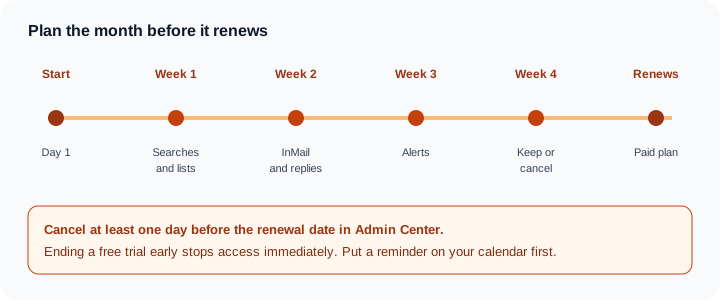
Who can start a trial
Compare plans says you can sign up for a Core or Advanced free trial with your LinkedIn account if both of these are true:
- You are not on a paid LinkedIn subscription, including Premium or Sales Navigator.
- You have not used a LinkedIn free trial in the past 365 days.
Trial availability and features may vary by plan and region. The page asks why a card is required: so the subscription can continue without a second signup. Cancel before the trial ends if you do not want to be charged. That page also says LinkedIn sends an email reminder seven days before the trial expires.
Advanced Plus is not in that free-trial answer. The plan table marks it Request demo, and the purchase answer says to contact LinkedIn's sales team. This guide does not describe a self-serve Advanced Plus trial, because the page does not.
LinkedIn's Premium free-trial article says eligibility is not guaranteed, trial length may vary by region or promotion, a valid card is required, and you cannot switch between Premium plans for free during the trial. If you are not eligible, that article says you may already have used a trial.
When the free trial becomes a paid plan
Auto-renewal of Sales Navigator after a free trial is the page to read before you enter the card. If you started the trial on LinkedIn.com, it becomes a paid subscription on the billing date, one month after you started. LinkedIn says it emails your primary LinkedIn address before the trial ends and before the card is charged, when you signed up on LinkedIn.com.
Open LinkedIn Admin Center and read the auto-renewal date. Cancel at least one day before it. Compare-plans says the reminder email arrives seven days out. The auto-renewal article does not repeat that number, so copy the Admin Center date and do not wait for the email.
Two purchase paths change the reminder:
- If you bought on an Android device, you will not receive an email reminder before auto-renewal.
- If you bought on an iOS device, you will receive an email before auto-renewal.
If you cancel a free trial, you are not eligible for another for at least 12 months, and ending it early stops access immediately. Cancel LinkedIn Premium subscription says the same for a Premium trial, and says a paid Premium plan stays active until the end of the billing cycle. Compare-plans describes that paid case: an annual plan runs through the paid year, and a monthly plan runs through the current month.
Put a reminder on your calendar two or three days before the Admin Center date. One day before is the deadline LinkedIn names.
How to cancel
Cancel in the place you bought it. The steps differ for Advanced, Core, and a purchase made on a phone.
Advanced, bought online. Cancel your Sales Navigator Advanced account says only a purchaser admin can cancel. The path is:
- Sign in to Sales Navigator.
- Click Admin in the top menu.
- Click Admin Center.
- Click Purchases.
- On the Active tab, select the subscription.
- Under Actions, select Cancel free trial, or Cancel subscription, and follow the screen.
Core. Cancel your Sales Navigator Core account uses Admin Center through settings:
- Sign in to LinkedIn.
- Click the Me icon, then Settings & Privacy.
- Open Account Preferences and find Subscriptions & payments.
- Click Manage Premium account, then Manage Subscription.
- Click Purchases.
- Select the subscription.
- Under Actions, select Cancel free trial, or Cancel subscription, and follow the screen.
Bought on a phone. Considerations before you cancel says that if you purchased Sales Navigator through an iOS device, cancel using that iOS device. The auto-renewal article says an Android purchase does not get an email reminder. This guide does not add a Google Play click-path for Sales Navigator, because the Core and Advanced articles above do not give one. If the desktop Admin Center does not show the subscription, go back to the device you used to buy it.
A subscription bought through LinkedIn's sales team is also outside those screens. The considerations page says to contact your account manager.
What you lose when the account ends
The Core and Advanced step pages tell you to understand the results before you cancel. They do not themselves list saved data. The considerations page does.
LinkedIn says you currently do not have an option to save critical information on the Sales Navigator account, including messages, saved leads, and saved accounts. That data is removed as soon as you cancel, and you will not be able to access it. If you buy Sales Navigator again, you start over. None of the previous subscription's data comes back.
Cancelling does not delete your personal LinkedIn profile. InMail credits do not move to that profile, and you will not be able to open Sales Navigator messages from your personal LinkedIn inbox.
The same page says the account is cancelled at the end of the current billing cycle. The trial articles say ending a free trial early stops access immediately. Write down names, notes, and next steps before you click.
A four-week plan for the trial month
Use the month to answer one question: would you open this product every week? The day-to-day controls are in how to use LinkedIn Sales Navigator. The search strings are in LinkedIn Boolean search.
| Week | Do this | Done when |
|---|---|---|
| 1. Searches and lists | Build three saved searches you would actually reopen, and a short lead list from each. Keep the filters tight enough that you recognize the people. | You can name the three searches without looking them up. |
| 2. InMail and replies | Send a few InMails you would send if you were paying, and write down who replies. The compare-plans page lists 50 InMail credits a month on Core, Advanced, and Advanced Plus. How credits are used is in LinkedIn InMail credits. | You know whether replies came back, not only whether the credit left the balance. |
| 3. Alerts and TeamLink | Read the alerts those saved searches produce. If your plan includes TeamLink, look for a warm path on a few accounts. Confirm the feature on the compare-plans page for the plan you are trialing. | You have seen at least one alert or intro path you would have missed in ordinary search. |
| 4. Decide | Score the month with the questions below. Set the calendar reminder two or three days before the Admin Center renewal date. Cancel at least one day before if the score is no. | The renewal date is on your calendar, and the cancel or keep choice is written down. |
Three searches is a plan for the month, not a LinkedIn minimum.
Keep or cancel
Score the trial with questions you can answer from your own notes. There is no official pass mark.
- Did a saved-search alert surface a person or account you would have missed?
- Did InMail replies tell you the message was worth a credit, or did you only learn that people ignore a generic note?
- Did TeamLink, if you had it, show a path you could actually ask a teammate to make?
- Would you open the product next Monday if the card were about to be charged?
- Can you name the hours it saved, in your own week, without borrowing someone else's statistic?
A yes on the first and the fourth is a reason to keep it. A no on both is a reason to cancel before the renewal date. If the answer is no, Sales Navigator alternatives is the comparison to read before you buy a different tool.
Trial mistakes
- Cancelling on day one, before a saved search has produced an alert. Another trial is then at least 12 months away.
- Never opening Admin Center. Android purchases do not get a reminder email. iOS purchases do. Copy the date from Admin Center.
- Starting on an iOS device, then looking for cancel only on the website. LinkedIn says to cancel that purchase on the iOS device.
- Assuming you can start another trial next month. Compare-plans says 365 days. The auto-renewal article says at least 12 months after you cancel.
- Sending every InMail credit on day two. Week 2 is for a few real notes, after Week 1 has a list.
Where the replies go
Sales Navigator messages are not the same inbox as ordinary LinkedIn messages. The considerations page says you cannot read those Sales Navigator messages from your personal LinkedIn account. How to work the Sales Navigator inbox during the month is in Sales Navigator inbox management.
We build Narrow. On Super Pro, the Sales Navigator inbox keeps those replies with labels, reminders, and pipeline stages next to regular LinkedIn messages.
Sources (checked 21 November 2026): Compare plans, LinkedIn Premium free trial, Auto-renewal of Sales Navigator after a free trial, Cancel your Sales Navigator Advanced account, Cancel LinkedIn Premium subscription, Cancel your Sales Navigator Core account, and Considerations before you cancel your Sales Navigator account.
Common questions
Is Sales Navigator free?
Sales Navigator is a paid product. LinkedIn's compare-plans page says members who are not on a paid LinkedIn subscription, and who have not used a LinkedIn free trial in the past 365 days, can start a free trial of Core or Advanced. The trial requires a card. Advanced Plus is listed as Request demo, and LinkedIn says to contact its sales team to buy it.
How long is the Sales Navigator free trial?
LinkedIn's auto-renewal article says a free trial started on LinkedIn.com becomes a paid subscription on the billing date, one month after you start. A separate Premium free-trial article says trial length may vary by region or promotion. Check the auto-renewal date in LinkedIn Admin Center rather than assuming the calendar.
How do I cancel a Sales Navigator free trial?
For Advanced bought online, a purchaser admin opens Sales Navigator, then Admin, Admin Center, Purchases, the Active tab, selects the subscription, and chooses Cancel free trial. For Core, start at Settings and Privacy, then Account Preferences, Manage Premium account, Manage Subscription, Purchases, and Cancel free trial. Cancel at least one day before the renewal date. Ending a free trial early stops access immediately.
Do I need a credit card for the Sales Navigator free trial?
Yes. The compare-plans page and LinkedIn's Premium free-trial article both say you enter a card. LinkedIn says it uses the card so the subscription can continue, and that you can cancel before the trial ends to avoid being charged.
What happens to saved leads if I cancel Sales Navigator?
LinkedIn's considerations page says you do not have an option to save messages, saved leads, and saved accounts. That data is removed as soon as you cancel, and a later subscription starts empty. Write down the names and next steps you still need before you cancel. Cancelling Sales Navigator does not delete your personal LinkedIn profile.
Narrow is a LinkedIn inbox tool with labels, reminders, a pipeline and an AI Auto Screener.
See how Narrow works