

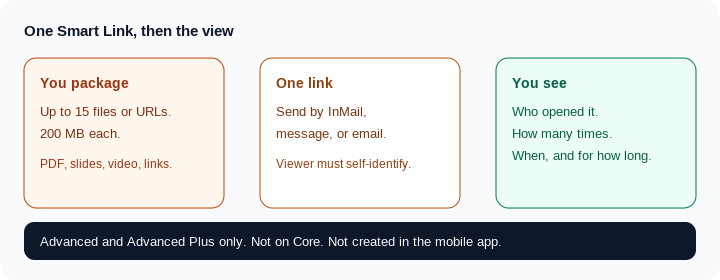
Quick answer. Smart Links is a Sales Navigator feature that packages content such as PDFs, slide decks, videos, and website links into one trackable link you can send by InMail, message, or email. You see who opened it, how many times, when, and for how long. It is included in Sales Navigator Advanced and Advanced Plus, not Core.
The clicks and limits below are from Sales Navigator Help, checked 28 November 2026. Prices are from the compare-plans page, which is marked "Updated: September 27, 2026."
Narrow is a LinkedIn inbox tool with labels, reminders, a pipeline and an AI Auto Screener.
See how Narrow worksWhich plans include Smart Links
You need Sales Navigator Advanced or Advanced Plus. Smart Links in Sales Navigator says it is not available without Sales Navigator. Account types and features marks Smart Links No on Core and Yes on Advanced and Advanced Plus. Advanced is team collaboration without CRM sync, including shared lists, Buyer Intent, and Smart Links. Advanced Plus is full CRM sync and embedded workflows.
| Plan | Smart Links | CRM writeback for Smart Links | Starting price, as of 28 November 2026 |
|---|---|---|---|
| Core | No | No | US$119.99 per license per month, or US$1,079.88 per year |
| Advanced | Yes | No | US$159.99 per month, or US$1,799.88 per year |
| Advanced Plus | Yes | Yes | Custom. The page says "Request demo for pricing." |
Prices are from compare plans as of 28 November 2026. The page is marked "Updated: September 27, 2026," and describes Smart Links as "Share content in trackable links and see how prospects engage." Setup is in how to use LinkedIn Sales Navigator. The buy-or-skip choice is in is LinkedIn Sales Navigator worth it. Trials are in the Sales Navigator free trial guide.
Access Smart Links: admin-only users have no access. An admin can turn Smart Links off for the whole contract in Admin Settings, and cannot limit it to certain users. If a user leaves or a seat is disabled, recipients can no longer open that person's links. A transferred license takes its Smart Links with it.
PointDrive is no longer available. LinkedIn says to use Smart Links instead: PointDrive is no longer available.
How to create a Smart Link
Desktop only. Create Smart Links is the source.
- Sign in to Sales Navigator.
- Click Smart Links in the top menu. The page lists your links and lets you create, preview, modify, delete, or open analytics.
- Click New Smart Link and enter a title.
- Click Add, then Files or Website.
- For a video: Add, then Website, a title, the address, then Add.
- Optional: Enable recipient to download viewable files.
- Click Create.
To update one, hover, More, Modify, then Modify again. You can change the title, add content, and update viewer permissions. Anyone with the link sees only the current content. Preview is hover, More, Preview.
Add a Smart Link to an InMail
The same create article covers the inbox path. Compose the InMail from the Sales Navigator inbox or from a prospect's profile.
- Click Add Smart Link at the bottom of the message.
- Enter a Title.
- Click Add and choose the files.
- Click Insert.
The link is added to the message and saved on the Smart Links tab. An InMail still spends an InMail credit. How those credits work is in LinkedIn InMail credits.
How to share a Smart Link
Share Smart Links: anyone can receive one. It shows the author's profile image and name. Send it by Sales Navigator, InMail, chat, or email.
On desktop
- Open Smart Links.
- Hover the Smart Link.
- Click Copy Link.
- Paste it into the Sales Navigator message, the InMail, the chat, or the email.
In the mobile app
The app can open a Smart Link you already made and show viewer activity. It cannot create one.
- Open the Sales Navigator app.
- Tap Links.
- Tap More.
- Choose Preview Smart Link, Copy link, Send in private message, or Share via.
What you can upload
Create Smart Links: up to 15 files, each up to 200 MB. PDFs up to 300 pages. GIFs up to 250 frames. Videos must not exceed 30 minutes.
| What you add | Types | What the viewer gets |
|---|---|---|
| Viewable and trackable | PDF, Microsoft Word, Microsoft PowerPoint, images (PNG, JPEG, GIF), video (MP4, QuickTime, WMV, AVI) | Opens in the link, and the view is tracked. |
| Download only | TIFF, Microsoft Excel, Apple Keynote, Apple Pages, Apple Numbers, Zip, CSV, TXT | The viewer downloads the file. It is not in the viewable-and-trackable list. |
A website address, including a YouTube video under the 30-minute limit, is added with Website, not as one of those file types.
What the analytics show
Hover the Smart Link, then Analytics. Smart Links Insights shows:
- How many times they opened it.
- Time spent.
- The date and time they opened it.
- If they were signed in: name, title, company, and public profile picture.
- If they were not signed in: the name they entered, and an email if they gave one.
Smart Links analytics also lists usage reports: "Smart Links created" and "Smart Links viewed," per user. A viewer can delete their viewing data by revoking consent. Signed-in viewers do that in privacy settings. Everyone else contacts LinkedIn support. These pages do not describe an alert, a badge, or an email on each view.
What the recipient sees
Anyone with the URL can open it, member or not. Share Smart Links says all users have to self-identify before viewing. A signed-in member sees a welcome screen and clicks Agree and View. A logged-out viewer signs in, or gives a first name, last name, and email. The main FAQ instead says a non-member is asked for a name and an optional email. Both lines are on LinkedIn's pages.
A recipient can report one. Report a Smart Link: open the link, Agree and view, More next to the title, Report this content, a reason, then Submit.
Limits worth knowing
- No password.
- No expiry date.
- You cannot prevent downloads.
- You cannot prevent forwarding. A new viewer is identified when they open it.
- You cannot block a single viewer.
- You cannot create a Smart Link in the mobile app. You can view and share one that already exists.
- If the seat is removed, people who received the link can no longer open it.
Smart Links data privacy: LinkedIn scans uploads for certain illegal or inappropriate content, admins cannot restrict what is uploaded, and it is not built for HIPAA or FINRA-type compliance.
Smart Links and your CRM
CRM writeback for Smart Links is Advanced Plus. Smart Links analytics gives the admin path: Admin Settings, then the CRM Production or Sandbox environment, select the CRM, Log In, open Exported to CRM, and turn on Log Smart Links. The same article says an admin can add a company privacy-policy link, and that the link shows on the opt-in page.
Writeback runs once per viewing session. It does not run again if that viewer started a session less than 60 minutes ago. The viewer must already match a CRM record, and must be signed in to LinkedIn or click Access via LinkedIn. The article lists writeback fields for Salesforce and Microsoft Dynamics 365. It does not say every CRM gets the same fields. The wider sync is in LinkedIn CRM integration.
Following up after a view
Smart Links tell you who looked. The reply usually happens in the Sales Navigator inbox. Narrow, which we build, is a LinkedIn inbox tool. On Super Pro it shows the Sales Navigator inbox next to your regular LinkedIn messages, so you can put a follow-up reminder, a label, or a pipeline stage on that thread, and the AI Auto Screener sorts new replies. Narrow does not create Smart Links, show their analytics, or sync a view to a CRM. Plans are on pricing. The inbox steps are in Sales Navigator inbox management.
Wording is in LinkedIn follow-up message templates. LinkedIn's July 2022 sales post is used here only for timing a follow-up from what someone viewed. Limits come from Help.
What LinkedIn Help does not say
Not on the pages checked for this guide:
- Whether a Smart Links view shows up inside the regular LinkedIn inbox.
- Whether there is a cap on how many Smart Links you can create. The cap that is published is 15 files on one link, not a cap on the number of links.
- How long analytics are kept.
Sources (checked 28 November 2026)
- Smart Links in Sales Navigator FAQ
- Access Smart Links FAQ
- Sales Navigator account types and features
- Compare plans
- Create Smart Links FAQ
- Share Smart Links FAQ
- Smart Links analytics FAQ
- Smart Links Insights
- PointDrive is no longer available
- Report a Smart Link
- Smart Links Data Privacy and Security FAQ
- Sales Navigator Smart Links: how and why to use them (July 2022, timing only)
Common questions
What are Smart Links in Sales Navigator?
Smart Links package content such as slide decks, videos, and website URLs into one trackable link you send from Sales Navigator by InMail, message, or email. You can see who opened it, how many times, when, and for how long. You need Sales Navigator Advanced or Advanced Plus. They are not on Core, and they are not available without Sales Navigator.
Which Sales Navigator plan has Smart Links?
Advanced and Advanced Plus include Smart Links. Core does not. CRM writeback for Smart Links is Advanced Plus only. As of 28 November 2026, LinkedIn's compare-plans page lists Core from US$119.99 per license per month and Advanced from US$159.99 per month. Advanced Plus is request-a-demo pricing.
How many files can a Smart Link hold?
Up to 15 files, each up to 200 MB. PDFs can be up to 300 pages, GIFs up to 250 frames, and videos must not exceed 30 minutes.
Can I see who opened my Smart Link?
Yes. LinkedIn says all users have to self-identify before viewing the link. Signed-in members see a welcome screen and click Agree and View. If they are signed in, analytics can include name, title, company, and public profile picture, plus how many times they opened it, when, and how long they spent. If they are not signed in, you see the name they gave and an optional email.
Can I create a Smart Link on mobile?
No. Creating Smart Links is not supported in the Sales Navigator mobile app. You can view Smart Links you already made, see viewer activity, and share a link from the app.
What happened to PointDrive?
PointDrive is no longer available. LinkedIn recommends Smart Links instead.
Do Smart Links sync to my CRM?
Only on Advanced Plus, and only if an admin turns on Log Smart Links. The path is Admin Settings, the CRM Production or Sandbox environment, Log In, Exported to CRM, then Log Smart Links. Writeback runs once per viewing session, and not again if that viewer started a session less than 60 minutes ago. The viewer must already match a CRM record and be signed in to LinkedIn, or click Access via LinkedIn. Core and Advanced do not include this writeback.
Narrow is a LinkedIn inbox tool with labels, reminders, a pipeline and an AI Auto Screener.
See how Narrow works