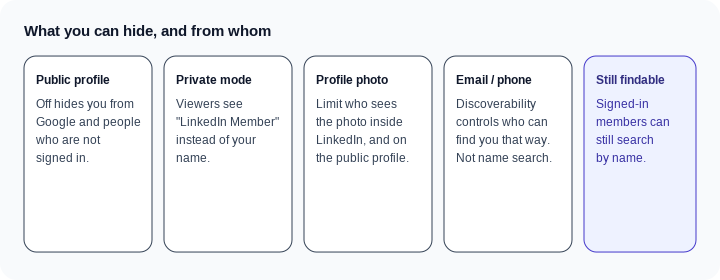
Quick answer. LinkedIn has no single "private profile" switch: signed-in LinkedIn members can still find your profile in LinkedIn search. What you can do is turn Your profile's public visibility to Off so people who aren't signed in and search engines like Google don't see it, browse other profiles in Private mode, limit who sees your profile photo and who can find you by email or phone, and turn off off-LinkedIn visibility, active status and read receipts.
The clicks below are from LinkedIn Help, checked 29 November 2026.
Narrow is a LinkedIn inbox tool with labels, reminders, a pipeline and an AI Auto Screener.
See how Narrow worksWhat "private" can and can't mean on LinkedIn
Signed-in members can still search by name, company, and similar details. Manage your profile's visibility on and off LinkedIn says LinkedIn doesn't let members search an email address directly on LinkedIn. There is no switch that hides you from people who are signed in.
Settings has six sections, including Visibility ("Control who can see your profile, network, and LinkedIn activity") and Data privacy. The direct address is linkedin.com/psettings, from Manage your account and privacy settings. Who can follow you versus who you connect with is a different control, covered in LinkedIn followers vs connections.
| What you want to hide | Who it hides it from | Setting name | Where | Source |
|---|---|---|---|---|
| Profile from Google and non-members | People not signed in, and search tools | Your profile's public visibility | Public profile & URL | Public profile |
| One public section | That same public audience | Section toggles | Edit Visibility | Public profile |
| Profile photo | The audience you pick | Photo Visibility | The photo, and Edit public profile & URL | Photo visibility |
| That you viewed someone | The member whose profile you opened | Private mode, or semi-private characteristics | Visibility when viewing other profiles | Private mode |
| Being found by email or phone | The group you select, down to Nobody | Discoverability by email / Discoverability by phone number | Visibility of your profile & network | Profile visibility |
| Profile in partner services | Permitted partners and developers | Off-LinkedIn visibility | Visibility | Off-LinkedIn visibility |
| Online status | The audience you set | Manage active status | Visibility of your LinkedIn activity | Active status |
| That you read a message | Everyone in that conversation, including you | Delivery and typing indicators | Messaging experience | Read receipts |
1. Hide your profile from Google and people who aren't signed in
Control your public LinkedIn profile chooses which sections people who are not signed in can see, including on Google or Bing. LinkedIn public profile visibility adds public profile badges, approved services like Outlook, and search tools: Google, Yahoo!, Bing, and DuckDuckGo.
Disabling your public profile hides it from non-LinkedIn members or search tools results. It could also prevent you from recovering your account if you lose access to your primary email address, as LinkedIn may require your public profile URL.
Even if it stays public, non-members may be prompted to sign in to see parts of it. Changes save automatically.
Desktop
- Click the Me icon.
- Click your Profile card.
- Click the Edit icon next to Public profile & URL in the right pane.
- Toggle Your profile's public visibility to Off. Or leave the profile public and toggle individual sections off.
Mobile
- Tap your profile photo.
- Tap Settings & Privacy.
- Tap Visibility.
- Under Visibility of your profile & network, tap Edit your public profile.
- Toggle Your profile's public visibility, or toggle individual sections.
"It may take several weeks or even months" for Google, Yahoo, or Bing to catch up. LinkedIn does not control that. Profile displays incorrectly in search tool results points an outdated Google result to Google's Refresh Outdated Content tool and Bing's Content Removal tool. Closing the account can take up to 72 hours before LinkedIn removes the public profile. A download of your own connections is a different task, covered in how to export LinkedIn connections.
2. Browse profiles in private mode
Browse profiles in private and semi-private mode changes what someone sees when you open their profile. It does not hide yours from search. Private mode shows "LinkedIn Member - This person is viewing profiles in private mode." Semi-private mode shows characteristics such as job title, company, school, and industry, for example "Someone at Accenture." The other choice is your name and headline. This desktop path saves automatically. The article does not publish a mobile path.
- Click the Me icon.
- Click Settings & Privacy.
- Click Visibility in the left rail.
- Under Visibility of your profile & network, click Visibility when viewing other profiles.
- Choose Your name and headline, Private profile characteristics (i.e. job title and industry), or Private mode.
3. Limit who sees your profile photo
There are two photo controls. Settings for profile photo visibility is the in-LinkedIn photo. LinkedIn public profile visibility says the default public photo setting is Public.
Who sees the photo inside LinkedIn
On desktop:
- Click the Me icon, then your Profile card.
- Click your profile photo.
- Click the Visibility icon.
- Choose 1st-degree connections only, Your network, All LinkedIn members, or Anyone.
- Click Save.
On mobile: tap your profile photo, open your Profile card, tap the profile photo, tap View or edit profile photo, then the Visibility icon.
Who sees the photo on the public profile
Open Edit public profile & URL. Under Edit Visibility, Profile Photo is Only 1st-degree connections, Your network, All LinkedIn Members, or Public. LinkedIn says these settings must be updated on the desktop site and can't be changed on the LinkedIn mobile app. That note is about this public photo, not the in-LinkedIn Visibility icon.
4. Stop people finding you by email or phone
Discoverability by email and Discoverability by phone number are in Manage your profile's visibility on and off LinkedIn. Choosing Nobody does not block a search by name, and it does not stop permitted services finding you by name and organization. Use Off-LinkedIn visibility for that.
Desktop
- Click the Me icon.
- Click Settings & Privacy.
- Click Visibility.
- Under Visibility of your profile & network, open Discoverability by email or Discoverability by phone number.
- Choose from 1st-degree connections, 2nd-degree connections, 1st and 2nd-degree connections, Anyone, Everyone, or Nobody. LinkedIn says options may vary.
Mobile
- Tap your profile photo.
- Tap Settings.
- Tap Visibility.
- Open the same discoverability setting.
5. Turn off off-LinkedIn visibility
Off-LinkedIn visibility controls whether permitted partners and developers, such as email integrations, social media aggregators, and talent and lead managers, can show your profile to their users. It used to be called "sharing data with third parties."
- Click the Me icon.
- Click Settings & Privacy.
- Open the Visibility section.
- Open Off-LinkedIn visibility.
- Toggle it Off.
Turning it off does not change the public profile. Search tools still follow Your profile's public visibility. The article documents this desktop path only.
6. Hide active status and read receipts
Manage active status hides the green circle. Choose No one. The clicks are in LinkedIn active status.
Delivery and typing indicators is the read receipt. Turn it off to stop Message read. The clicks are in LinkedIn read receipts.
What private mode costs you
Private mode viewers of profiles splits the cost by account type. With a Basic (free) account, private mode means you can't see who's viewed your profile either. With Premium, you can browse privately and still see viewers from the last 90 days.
You can't block private-mode viewers or make them reveal their names. Even Premium can't see those names. The article does not give semi-private mode this same trade.
What LinkedIn Help does not say
- No setting makes your profile invisible to signed-in members. Help describes search by name and company, and it offers no such switch.
- Help doesn't say how fast Google drops a hidden profile beyond "weeks or even months."
- Help doesn't promise that semi-private or private mode hides you from every analytics surface beyond Who's Viewed Your Profile.
If you're hiding because of unwanted messages
A note from a coworker or a Group member you are not connected to is a message request. Accept moves it to the main inbox. Decline does not notify the sender. The clicks are in LinkedIn message requests.
A LinkedIn inbox tool like Narrow helps you sort the messages you do want — labels, follow-up reminders, pipeline, AI Auto Screener — it does not change any privacy setting. Narrow does not hide your profile, browse profiles for you, or show who viewed you.
Sources (checked 29 November 2026)
- Control your public LinkedIn profile
- LinkedIn public profile visibility
- Profile displays incorrectly in search tool results
- Browse profiles in private and semi-private mode
- Private mode viewers of profiles
- Settings for profile photo visibility
- Manage your profile's visibility on and off LinkedIn
- Off-LinkedIn visibility
- Manage your account and privacy settings
- Block or unblock a member
- Google's Refresh Outdated Content tool
Common questions
Can you make your LinkedIn profile completely private?
No. LinkedIn has no single private-profile switch. Turning Your profile's public visibility to Off hides the profile from people who are not signed in and from search tools such as Google. Signed-in members can still find you in LinkedIn search by name, company, and similar details. LinkedIn does not let members search an email address directly on LinkedIn.
Will people know if I view their profile in private mode?
They see LinkedIn Member and the line This person is viewing profiles in private mode. They do not see your name. You cannot block a private-mode viewer or force that person to reveal a name, and even Premium cannot see the names of people browsing in private mode. With a free Basic account, private mode also means you cannot see who viewed your profile. Premium members can browse in private mode and still see viewers from the last 90 days.
How do I hide my LinkedIn profile from Google?
On desktop, click the Me icon, open your Profile card, and click the Edit icon next to Public profile & URL. Turn Your profile's public visibility to Off. On mobile, tap your profile photo, Settings & Privacy, Visibility, then Edit your public profile under Visibility of your profile & network. Changes save automatically. LinkedIn says it may take several weeks or even months for Google, Yahoo, or Bing to reflect the change, and LinkedIn does not control that.
Can I hide my LinkedIn profile from one person?
The public-visibility toggle is not a per-person switch. LinkedIn's Block or unblock a member article says you can block a member from viewing your profile, on desktop or mobile. The blocked member is not notified, except that LinkedIn reserves the right to notify someone you currently or previously shared a Recruiter account with. Blocking is one member at a time. It does not hide your profile from everyone else.
Does hiding my public profile affect account recovery?
It can. LinkedIn says disabling your public profile hides it from non-members and from search-tool results, and that it could also prevent you from recovering your account if you lose access to your primary email address, because LinkedIn may require your public profile URL.
Narrow is a LinkedIn inbox tool with labels, reminders, a pipeline and an AI Auto Screener.
See how Narrow works