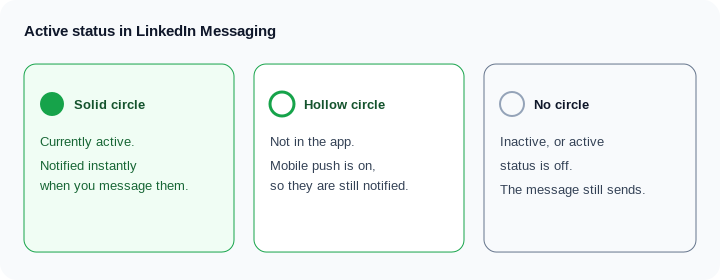
Quick answer. In LinkedIn Messaging, a solid green circle on a connection's profile photo means they are currently active. A hollow green circle means they are not actively using LinkedIn, but push notifications are on in the mobile app. By default this is on for your connections. To hide it, open Manage active status and choose No one.
People search for this as the green dot. LinkedIn's messaging help uses "green circle." A separate Sales Navigator article says "green dot" on a saved lead. The steps below are from those articles, checked 25 November 2026: Active status in LinkedIn Messaging and Change active status on LinkedIn Messaging.
Narrow is a LinkedIn inbox tool with labels, reminders, a pipeline and an AI Auto Screener.
See how Narrow worksWhat the green circle means
The indicator article is about a connection's profile photo in LinkedIn Messaging. It describes two circles, and the case with no circle.
| Indicator | What LinkedIn Help says |
|---|---|
| Solid green circle | Your connection is currently active and will be instantly notified when you message them. |
| Hollow green circle | Your connection is not actively using LinkedIn, but has push notifications enabled on the LinkedIn mobile app. They will be notified instantly when you message them. On the mobile app, a timestamp next to the photo shows when they were last active. |
| No green circle | Your connection is either not currently active or has turned off active status. Your message still sends. They will not see it until they open LinkedIn messaging. |
A hollow circle is not a softer version of "online." LinkedIn's sentence is that they are not actively using LinkedIn, and that mobile push is on. The timestamp is named only for that hollow circle, and only on the LinkedIn mobile app. The article does not say the desktop site shows the same timestamp.
No circle is ambiguous on purpose. LinkedIn gives two causes and does not tell you which one you are looking at. A missing circle is not proof that the person blocked you, and it is not proof that they turned the setting off.
The same article says the feature is on for your connections by default.
Who can see your active status
The change article gives three choices under Manage active status. These are the labels LinkedIn prints.
| Setting | Who can see when you are active |
|---|---|
| Your Connections only | Only your 1st-degree connections. |
| All LinkedIn members | All LinkedIn members. |
| No one | Your active status is hidden from all LinkedIn members. |
Your Connections only matches the default the indicator article describes: on, for your connections. All LinkedIn members is wider than your network. No one is the hide option.
The indicator article talks about what you see on a connection. It does not redraw the solid and hollow circles for someone who is not a connection. Do not assume a non-connection sees the same two circles just because All LinkedIn members is selected. That article does not say so.
A green circle is also not a conversation. A note from a coworker or a Group member you are not connected to still arrives as a LinkedIn message request. Accepting that request is what moves it into the main inbox. Active status does not accept it for you.
How to change active status on desktop
LinkedIn does not publish a button named "Appear offline." The control is Manage active status.
- Click the Me icon at the top of your LinkedIn homepage.
- Select Settings & Privacy from the dropdown.
- Click Visibility in the left rail.
- Under Visibility of your LinkedIn activity, click Manage active status.
- Choose Your Connections only, All LinkedIn members, or No one.
To appear offline to members, choose No one.
How to change it on mobile
LinkedIn publishes one mobile path. It does not split iPhone and Android.
- Tap your profile photo, then tap Settings & Privacy.
- Tap Visibility.
- Under Visibility of your LinkedIn activity, tap Manage active status.
- Choose the same three options.
The mobile article uses the same names as desktop. It does not add a fourth option.
What turning it off changes
Choosing No one hides your active status from all LinkedIn members. On the same help page, LinkedIn says that if you turn off your active status, you also lose the ability to see when your connections are active.
Read that as a two-way switch. Hiding yours also hides theirs from you. The article does not say you can stay invisible and still watch everyone else's circle.
The article does not say that Your Connections only or All LinkedIn members changes anything else about your account. It does not mention profile views, search ranking, or who can message you.
The green dot in Sales Navigator
Find your saved leads in Sales Navigator uses the words "green dot," not "green circle." On the saved-leads page you may see a green dot next to a lead who is currently active on LinkedIn if either of these is true:
- You are connected with them on LinkedIn and their active status visibility is set to Your Connections only.
- Their active status visibility is set to All LinkedIn members.
That article does not define a solid dot versus a hollow dot, and it does not mention a timestamp. It also does not say the dot appears in search results or on a profile. The place it names is the saved-leads list, next to the Message control.
Active status is not a read receipt
A green circle does not mean someone read your message. Read receipts are a different help article. When Delivery and typing indicators are on, a read shows as Message read or as a small profile photo beside the message you sent. The clicks for that toggle, and what Sent means when it is off, are in LinkedIn read receipts.
The active-status articles do not mention read receipts, typing, or Delivery and typing indicators. Choosing No one is not described as turning receipts off. This guide does not claim the two settings move together.
If you message someone because the circle is solid and then want the words back, the 60-minute delete is in how to unsend a LinkedIn message. Active status does not extend that hour.
What LinkedIn Help does not say
These are the gaps on the pages checked for this guide. They are left blank on purpose.
- How long "currently active" lasts after you leave a page, lock the phone, or close the app. There is no minute count.
- Whether the hollow-circle timestamp appears on desktop. The article places that timestamp on the LinkedIn mobile app.
- Whether the same circle appears on the public profile, in search, or in the feed. Messaging help places it on the profile photo in LinkedIn Messaging. The Sales Navigator article places a green dot on a saved lead.
- What a label that reads "null" means. Help does not define that word, so this guide does not guess.
- Whether people who already have your thread open keep seeing a circle after you choose No one, or how fast the change shows.
- Whether All LinkedIn members shows non-connections the solid and hollow circles. The indicator article describes a connection's photo.
- A control named "Read receipts" inside Manage active status. It is not there.
Replying when you choose, instead of when a circle is on, is the habit in how to manage your LinkedIn inbox. If you want that date on the thread, Narrow's follow-up reminders and labels sit on the conversation, and Narrow does not show or hide LinkedIn active status.
Sources (checked 25 November 2026)
Common questions
What does the green dot on LinkedIn mean?
LinkedIn's messaging help calls it a green circle on a connection's profile photo. A solid green circle means they are currently active and will be notified instantly when you message them. A hollow green circle means they are not actively using LinkedIn, but push notifications are on in the mobile app, so they are still notified instantly. On the mobile app, a timestamp next to that photo shows when they were last active. No green circle means they are not currently active, or they turned active status off.
Can people see when I'm online on LinkedIn?
Yes, unless you hide it. Under Manage active status, choose Your Connections only, All LinkedIn members, or No one. Your Connections only means 1st-degree connections. All LinkedIn members means every member. No one hides your active status from all members. By default, the feature is on for your connections.
How do I appear offline on LinkedIn?
Choose No one under Manage active status. On desktop, click the Me icon, Settings & Privacy, Visibility, then under Visibility of your LinkedIn activity click Manage active status. On mobile, tap your profile photo, Settings & Privacy, Visibility, then the same section. LinkedIn says that if you turn active status off, you also lose the ability to see when your connections are active.
Does turning off active status turn off read receipts?
LinkedIn's active-status articles do not say that. They do not mention read receipts, typing indicators, or Delivery and typing indicators. Choosing No one hides your active status. It is not described as the control for read receipts.
Narrow is a LinkedIn inbox tool with labels, reminders, a pipeline and an AI Auto Screener.
See how Narrow works