

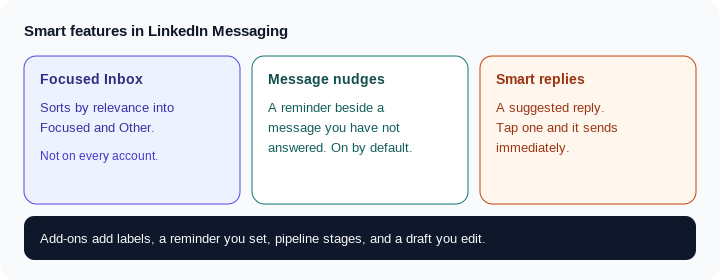
Quick answer. A "smart inbox" is an inbox that sorts, flags, or drafts for you instead of showing every message in date order. On LinkedIn itself that means the three smart features in LinkedIn Messaging — Focused Inbox (sorts messages by relevance into Focused and Other), message nudges (reminders next to important messages you have not answered), and smart replies (one-tap suggested responses) — which you manage under Settings & Privacy, then Data privacy, then Messaging experience. Third-party "smart inbox" tools add things LinkedIn does not have, such as AI labels or categories, follow-up reminders you set, pipeline stages, and drafted replies.
We build Narrow, one of the inbox tools mentioned below.
The names and clicks are from LinkedIn Help, checked 28 November 2026: Manage smart features in LinkedIn Messaging, Focused Inbox, LinkedIn message nudges, and Use smart replies in LinkedIn Messaging.
Narrow is a LinkedIn inbox tool with labels, reminders, a pipeline and an AI Auto Screener.
See how Narrow worksLinkedIn's built-in smart features
LinkedIn's phrase is smart features in LinkedIn Messaging. The help article says they "use automated systems to recognize patterns to help you better manage your inbox." It names three features. None of them is a folder you design.
| Feature | What it does | On by default? | Where to change it | Source |
|---|---|---|---|---|
| Focused Inbox | Sorts messages by relevance into Focused and Other, using automated machine learning. | Not on every account. LinkedIn says it is being gradually rolled out and may not be available yet. | Messaging experience, then Focused Inbox. A second path starts inside Messaging. | Focused Inbox |
| Message nudges | Reminds you to respond to important messages. The reminder sits next to a message you have not answered. With it on, you get push and in-app notifications. | Yes. | Messaging experience, then Message nudges. | Message nudges |
| Smart replies | Short responses generated from the message you received. Only when one member messages another. Selecting one sends it immediately. | The help page does not say. | Messaging experience, then Smart replies. | Smart replies |
Focused Inbox still notifies you either way. You get push notifications and badges for every new message, on both tabs. Move one thread from the message window: More, then Move to Focused or Move to Other. LinkedIn also did a one-time cleanup that moved older, less relevant messages to Other. Where the tabs sit, and the off switch inside Messaging, are in how Focused and Other work.
Smart replies name a few common options: "Thanks", "Not sure", and the Thumbs up icon. The options vary. The click sends. There is no edit step.
These three are not the filter row. Use filters and search for messages lists the inbox categories Focused, Other, Archived, and Spam, and the filters Jobs, Unread, My Connections, Starred, and InMail. On the mobile app, Drafts is in that list too. Starred is defined as "Messages you've marked important." LinkedIn Help lists these categories and filters. It does not describe custom labels. When the thread is older than a nudge, search LinkedIn messages by keyword or name.
How to turn LinkedIn's smart features on or off
The smart-features article uses one settings path for each toggle. Open the feature, then set it to On or Off. Turning Focused Inbox off does not turn off Message nudges or Smart replies. Focused Inbox also has a path that starts in the Messaging window. Those clicks are in the Focused Inbox guide.
Desktop
- Click the Me icon at the top of your LinkedIn homepage.
- Click Settings & Privacy.
- Click Data privacy in the left pane.
- Under Messaging experience, click Focused Inbox, Message nudges, or Smart replies.
- Set the toggle to On or Off.
Mobile
LinkedIn publishes one mobile path. It does not split iPhone and Android.
- Tap your profile photo.
- Tap Settings & Privacy.
- Tap Data privacy.
- Tap Messaging experience.
- Tap the feature.
- Set the toggle to On or Off.
What a third-party smart inbox adds
A product that calls itself a smart inbox is usually selling a job LinkedIn's three toggles do not do: a label on the new message, a date you pick, a stage on the thread, or a draft you can change before it sends. This page is the definition. It is not a ranking. The product comparison is the best LinkedIn inbox tools.
| Capability | Native LinkedIn? | What the help pages actually show |
|---|---|---|
| AI labels on each new message | No | The smart-features article names Focused Inbox, nudges, and smart replies. It does not describe categories such as Lead or Marketing. |
| Labels you create | No | LinkedIn Help lists the categories and filters above. It does not describe custom labels. |
| A follow-up reminder you schedule | Partly | Message nudges are reminders LinkedIn places on messages you have not answered. You do not pick the day. |
| Pipeline stages | No | Not described on the messaging pages checked here. |
| A reply you edit, then send | Partly | Smart replies are one tap, and that tap sends. They are not a draft. |
| Starred and Unread | Yes | Both are native filters. Starred means messages you marked important. |
| Messaging and Sales Navigator in one inbox | No | The pages checked here do not describe one combined inbox. Whether the three toggles apply inside Sales Navigator is not documented. |
Focused versus Other is a relevance guess, not "lead" versus "spam." A reply you want can sit in Other. A pitch can sit in Focused. Separating those is the job in how to separate LinkedIn leads from spam. Names you attach yourself are in how to label LinkedIn messages.
The Sales Navigator inbox is a different product from Messaging. Day-to-day work in that inbox is in Sales Navigator inbox management. Once a thread already has a label and a date, a short routine in Claude or ChatGPT is in how to manage your LinkedIn inbox with AI.
Examples
Three products use the words in different ways. The order is not a rank.
LeadDelta Smart Inbox
LeadDelta's Smart Inbox page says every incoming message gets an AI label. The examples it lists are Introductions, Awaiting reply, Action items, and Marketing. You choose which of those labels appear in your Main Inbox. The rest stay in All Messages. The same page says it drafts replies "in your voice" that you edit and then send. That is LeadDelta's description of its own product. This guide does not add a price.
Narrow
Narrow, which we build, is a LinkedIn inbox tool: labels, follow-up reminders you set, Kanban pipeline stages, snippets, search, and a local-first inbox. On Super Pro, the AI Auto Screener classifies each new message as Lead, Network, Cold, or Broadcast. It does not send. The Sales Navigator inbox sits next to regular messages, and Narrow MCP puts your LinkedIn inbox in ChatGPT or Claude. There is no automation and no auto-send. Narrow does not change Focused Inbox, Message nudges, or Smart replies. It is cost-effective, with more features and better quality in daily use. Plans are on pricing.
Kondo
Kondo is a good choice if you need multiple channels: LinkedIn plus WhatsApp and iMessage. The notes on that product are in the Kondo review.
Before you connect a tool: automation rules
Prohibited software and extensions says LinkedIn does not permit third-party software, including browser plug-ins and extensions, that scrape, modify the appearance of, or automate activity on LinkedIn's website. Read that page, then read the tool's own description of how it connects. Prefer a tool that does not send or act for you. Nothing on this page says a named product violates that rule, and nothing here says LinkedIn has approved an inbox tool.
What LinkedIn Help does not say
The pages checked for this guide leave these points out. They stay out of the steps above.
- How Focused Inbox decides relevance, past "automated machine learning" and relevance to you. There is no list of signals.
- Which messages count as "important" for Message nudges. The article says important messages you have not answered. It does not define important.
- Whether Smart replies are available on every account, or in every language. The article does not say.
- Whether the smart features can be turned on for the Sales Navigator inbox. That is not documented.
Sources (checked 28 November 2026)
Common questions
What is a smart inbox on LinkedIn?
A smart inbox sorts, flags, or drafts instead of listing every message by date. On LinkedIn that is the three smart features in LinkedIn Messaging: Focused Inbox, message nudges, and smart replies. You manage them under Settings & Privacy, Data privacy, Messaging experience. Third-party smart inboxes add things LinkedIn does not provide, such as labels, reminders you set, pipeline stages, and drafts you edit.
Can I turn off LinkedIn's smart features?
Yes. LinkedIn's article Manage smart features in LinkedIn Messaging gives each feature a toggle. On desktop, click the Me icon, Settings & Privacy, Data privacy, then under Messaging experience click the feature and set it to On or Off. On mobile, tap your profile photo, Settings & Privacy, Data privacy, Messaging experience, then the feature. Turning one off does not turn the others off.
What are LinkedIn message nudges?
Message nudges remind you to respond to important messages. The reminder appears next to a message you have not answered. The feature is on by default. While it is on, LinkedIn says you get push notifications and in-app notifications. The same Messaging experience screen turns it off.
Do LinkedIn smart replies send automatically?
Selecting a smart reply sends it immediately. LinkedIn does not send one without you tapping it. Smart replies are short suggestions generated from the message you received, and only when one member messages another. Options vary. Common ones LinkedIn names are Thanks, Not sure, and the Thumbs up icon. They are not a draft you edit first.
Does LinkedIn have labels or folders for messages?
LinkedIn Help lists the categories Focused, Other, Archived, and Spam, and the filters Jobs, Unread, My Connections, Starred, and InMail. Starred means messages you have marked important. The mobile app also lists Drafts. LinkedIn Help does not describe custom labels. Adding your own is covered in How to label LinkedIn messages.
Is a third-party smart inbox allowed?
LinkedIn's prohibited-software article says it does not permit third-party software, including browser plug-ins and extensions, that scrape, modify the appearance of, or automate activity on LinkedIn. Prefer a tool that does not send or act for you, and read how that tool says it connects. That page is not a finding that any named product breaks the rule, and it is not an approval of any inbox tool.
Narrow is a LinkedIn inbox tool with labels, reminders, a pipeline and an AI Auto Screener.
See how Narrow works