

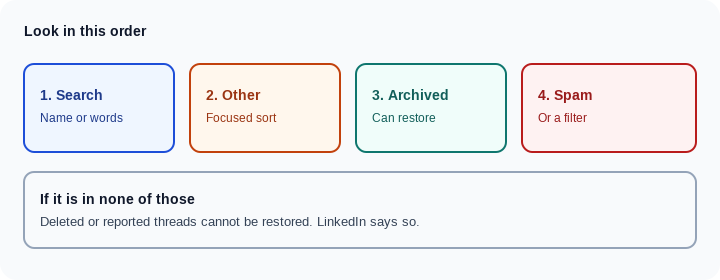
Quick answer. A LinkedIn conversation that seems to have vanished has usually moved, not been deleted. Check Search messages, then the inbox category dropdown (Focused, Other, Archived, Spam), then clear any filter such as Unread or InMail. If it is not in any of those, you (or LinkedIn on your behalf) deleted or reported it, or the other member's account changed, and LinkedIn says deleted conversations can't be restored.
The checks below are from LinkedIn Help, checked 27 November 2026.
Narrow is a LinkedIn inbox tool with labels, reminders, a pipeline and an AI Auto Screener.
See how Narrow worksCheck these places in order
- Search messages for a name or a phrase. The steps are in LinkedIn message search.
- Other, from the inbox category dropdown. See LinkedIn Focused Inbox.
- Archived, then restore. Steps are in how to archive LinkedIn messages.
- Spam, in that same dropdown.
- Clear Unread, InMail, Jobs, Starred, or My Connections. On mobile, also check Drafts.
- More, then Declined message requests. See LinkedIn message requests.
- Sales Navigator Messaging, if you sent it there, including that inbox's Archived tab. See Sales Navigator inbox management.
- If the row says A LinkedIn member, search words from the thread, not the name.
Search messages
Open Messaging and use the Search messages bar. The filter article says you can search by keyword or by recipient. If the name fails, search a phrase from the message. An empty result is not proof of a delete.
The Other tab
Focused Inbox sorts messages into Focused and Other with automated machine learning. LinkedIn says it did "a one-time cleanup of your inbox to keep recent and active conversations in the Focused tab while moving older and less relevant messages into Other." They were not deleted, and you still get notifications either way. Move one with More, then Move to Focused or Move to Other. Turn it on or off in Messaging settings. In some cases it turns on automatically outside the EU, and it "is being gradually rolled out and may not be available to you at this time." Steps are in LinkedIn Focused Inbox.
Archived
Archive your conversations takes a thread out of the main list. View and restore archived conversations says it stays in Archived and can be restored: open it, then More, then Restore. In the lower-right window, use the Filter icon in the Search messages bar. On mobile the label is Unarchive or Restore, including a swipe left. Sponsored Messaging ads move to Archived on their own, 20–40 days after you receive them.
Spam
Harmful message detection is optional: Me, Settings & Privacy, Data privacy, then Harmful message detection under Messaging Experience. Likely harmful content from someone you have not messaged goes to your spam messages folder. From someone you have messaged, it sits behind a warning you can dismiss. If you report a member's message, "you should no longer see the conversation that you reported in your messaging inbox," and they are not told who reported them. Spam is also a category in the inbox dropdown.
A filter is hiding the list
The filters are Jobs, Unread, My Connections, Starred, and InMail. Unread hides anything you already opened. InMail is only people who are not direct connections. In the lower-right window, the Filter icon in the Search messages bar adds Archived and Spam. On mobile, Drafts means "Messages you started but haven't sent yet." Clear the filter before you call the inbox empty.
Declined message requests
Message requests come from a coworker or a Group member you are not connected to. Accepting moves the conversation to the main inbox. A decline is private, and the sender is not notified. Declined requests stay available: More in the messaging window, then Declined message requests, then Accept if you want the thread in the inbox. The screen is covered in LinkedIn message requests.
Deleted, or archived in bulk
Delete a conversation or group chat removes it from your inbox, not the recipient's. "You can't restore or access deleted conversations." Deleting does not delete or block the connection. Bulk actions put delete and archive on the same Manage conversations bar, under More. That article says "You can't restore or access deleted messages." A bulk archive can be restored. A bulk delete cannot. One sent message, inside 60 minutes, is a different action: how to unsend a LinkedIn message.
The other person's account changed
Block a member says that if you cannot locate someone, they may have hibernated, been removed for abuse, blocked you, or closed their account. When you block a member, you cannot message each other and you are no longer connected. Hibernate your LinkedIn account is the case you can still open: their messages remain, identified only as "A LinkedIn member." The same article says a profile photo is replaced by a generic icon on posts and comments. Search a phrase from the thread, not the old name.
You left a group chat
Leaving a Conversation says leaving removes you for good. New messages stop, and you cannot reply or rejoin. You can leave only when at least two other people remain. After you confirm, the thread shows "You left the conversation." It is marked, not erased. See how to create a group chat on LinkedIn.
Sales Navigator has its own inbox
A Sales Navigator message has its own inbox. Archive messages in Sales Navigator says Messaging opens it, archive moves a message to the Archived tab, and you can't delete a message there. That tab is not LinkedIn's Archived folder. See Sales Navigator inbox management.
What happened, and whether you can get it back
| What happened | Where it is | Can you get it back? |
|---|---|---|
| Focused Inbox sorted it | Other | Yes. Move to Focused. |
| You archived it | Archived | Yes. Restore. Mobile: Unarchive. |
| A filter is on | Still in the inbox | Yes. Clear Unread, InMail, or the other filter. |
| Sponsored message, 20–40 days later | Archived | Yes. |
| Harmful-content filter, new sender | Spam | Not stated. |
| You reported it | No longer in the inbox | Not stated. |
| You declined a request | Declined message requests | Yes. Accept it later. |
| You deleted the conversation | Removed from your inbox only | No. |
| You left a group chat | Marked "You left the conversation" | You cannot rejoin. Group chats. |
| Sent from Sales Navigator | That inbox, or its Archived tab | Archive can be undone. Delete is not offered. |
| They hibernated | Still there, as A LinkedIn member | Yes. Search the words. |
| They blocked you, or closed the account | Not stated | Not stated. |
What LinkedIn Help does not say
These are the gaps. This page does not guess past them.
- Whether an existing conversation stays visible after someone blocks you or closes their account.
- How to move a message out of Spam. The articles say how a message gets there, not how to take it out.
- Whether a reported conversation can be restored. LinkedIn says you should no longer see it.
- Whether removing a connection changes a conversation that is already in the inbox. Deleting a conversation does not remove the connection. The reverse is not stated.
Stop losing threads in a busy inbox
A missing thread is usually one that got buried in Other, Archived, or behind a filter. Mark the ones you still need so you are not searching next week.
Narrow is a LinkedIn inbox tool. Labels, follow-up reminders, and pipeline stages keep important conversations findable. On Super Pro, the AI Auto Screener sorts each new message into Lead, Network, Cold, or Broadcast. It does not send. Narrow works with conversations already in your LinkedIn inbox. It cannot recover a deleted or reported conversation, and it does not change LinkedIn's Spam or Focused sorting. How labels work is in how to label LinkedIn messages. The day-to-day inbox routine is in how to manage your LinkedIn inbox. Plans are on pricing.
Sources (checked 27 November 2026)
- Use filters and search for messages
- Focused Inbox
- Archive your conversations
- View and restore archived conversations
- Delete, archive, and mark messages as read or unread in bulk
- Harmful message detection
- Send, receive, and manage message requests
- Delete a conversation or group chat
- Block a member
- Hibernate your LinkedIn account
- Leaving a Conversation
- Archive messages in Sales Navigator
Common questions
Why did my LinkedIn messages disappear?
They usually moved. Check Search messages, then the inbox category dropdown for Focused, Other, Archived, and Spam, and clear filters such as Unread or InMail. If the thread is in none of those, it was deleted or reported, or the other member's account changed. LinkedIn says a deleted conversation cannot be restored.
Where is the Other tab on LinkedIn?
On desktop, click the Messaging icon, open the inbox category dropdown, and choose Other. In the lower-right messaging window, Other is the tab next to Focused. If the tabs are missing, turn Focused Inbox on from Messaging settings. LinkedIn says the feature is rolling out gradually and may not be on your account yet.
How do I find archived messages on LinkedIn?
On the Messaging page, open the inbox category dropdown and select Archived. In the lower-right window, click the Filter icon in the Search messages bar and select Archived. Open the conversation, click More, then Restore. On mobile the label is Unarchive or Restore, and you can swipe left.
Can I recover a deleted LinkedIn conversation?
No. LinkedIn's delete article says you can't restore or access deleted conversations. The bulk-actions article says the same about deleted messages. Archive can be undone. Delete cannot.
Why does a conversation show 'A LinkedIn member' instead of a name?
LinkedIn's hibernation article says a hibernated member's messages remain, but the person is identified only as A LinkedIn member. Search for words from the thread, not the name. The same article says their profile photo is replaced by a generic icon on posts and comments.
If I delete a conversation, does the other person lose it too?
No. LinkedIn says deleting a conversation removes it from your inbox and not from the recipient's. It also does not delete or block the connection. Deleting one sent message within 60 minutes is a different action, and that message is removed for everyone in the thread.
Narrow is a LinkedIn inbox tool with labels, reminders, a pipeline and an AI Auto Screener.
See how Narrow works